
Add different authentication options
Last updated: May 20, 2025
By default Videosync events are public or available through registering to the event. In case you want to choose your audience more carefully, e.g. for an internal event, Videosync offers various Authentication methods.
You can access the Authentication settings from the following page: Build → Authentication
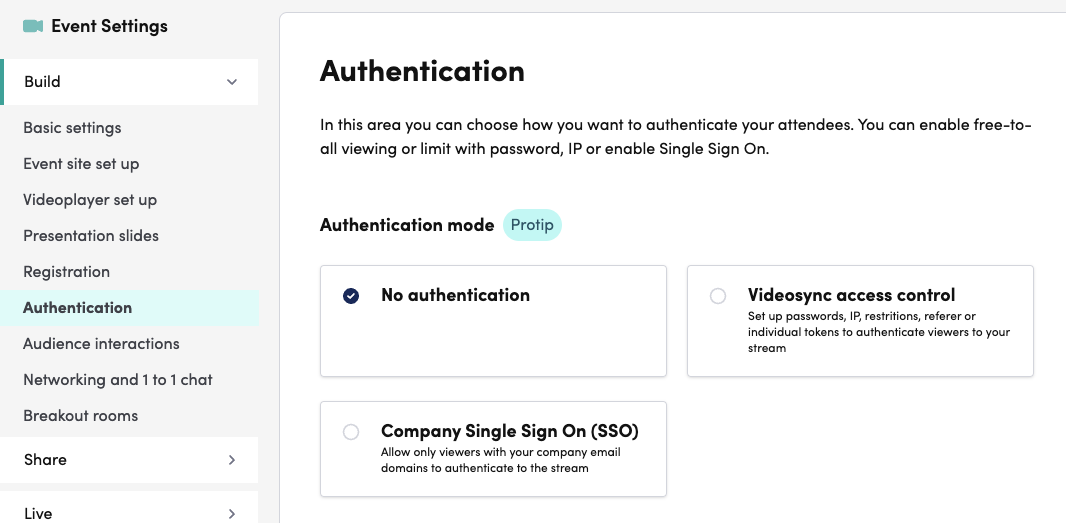
There are two main authentication modes, each with various options:
Videosync access control:
- Password protection
- Allowed IPs
- Tokens
- Referer protection
- Automatic redirect to URL
- Allow only one device per registered user
Company Single Sign On (SSO):
- Office 365 (Azure) authentication
- Google authentication
- Allow access alternatively with password or token
- Require password after SSO login
Videosync access control
Configure general settings that apply to all authentication methods.

When participant tries to access the page without authentication, the Access rejection message will be shown.
The toggle Require only one of the enabled protections below to pass refers to having multiple different methods of Videosync access control enabled simultaneously but allowing the participant to access the event if one of the authentication requirements are met instead of all of them.
Password protection
Password protection adds a simple login page before the event site.

Add new password section:
- Passwords to add: Enter passwords, one per line
- Expiration date: Set when the password expires
- Max usage limit: Limit password usage (e.g., 10 uses). Leave empty for unlimited
Click Add to save passwords to the List of existing passwords.
The list displays all passwords with their expiration dates, usage limits, and usage count. You can edit all fields except “times used”. Use Remove to delete individual passwords.
Additional buttons:
- Copy passwords to clipboard: Copy all passwords for sharing
- Delete all existing passwords: Remove all passwords at once
The Password page CSS editor allows customization of the login page styling (CSS knowledge required).
Default login page appearance:

Allowed IPs
Restrict access to your event based on IP addresses. This is useful for corporate events where attendees connect from known office networks or VPNs.
Enter the allowed IP addresses or IP ranges. Only visitors connecting from these IPs will be able to access the event. Others will see the access rejection message.
Tokens
Token-based authentication allows you to generate unique access links for individual participants or groups. Each token can be used once or multiple times depending on your configuration.
This method is ideal for distributing personalized access links via email or integrating with external systems that generate tokens programmatically.
Referer protection
Referer protection restricts access based on the referring website. The event will only be accessible when visitors arrive from specified domains.
This is useful when embedding your event on a specific website and you want to ensure viewers can only access it through that site, not by accessing the URL directly.
Automatic redirect to URL
When enabled, unauthorized visitors are automatically redirected to a specified URL instead of seeing the rejection message.
Use this to redirect visitors to a registration page, company website, or any other destination when they don’t meet the authentication requirements.
Allow only one device per registered user
This setting prevents registered users from sharing their access with others by limiting each registration to a single device.
Once a user accesses the event from one device, they cannot access it from another device simultaneously. This helps ensure accurate attendance tracking and prevents credential sharing.
Company Single Sign On (SSO)
SSO authentication allows participants to access your event using their existing company credentials. This provides a seamless login experience and ensures only authorized users from specific organizations can join.
Office 365 (Azure) authentication
Allow participants to authenticate using their Microsoft 365 / Azure AD credentials. Specify which email domains are allowed to access the event. This is ideal for corporate events where attendees already have Microsoft accounts.
No personal data is transferred to Videosync during SSO authentication. The login is only used to verify that the participant belongs to an allowed email domain.
Google authentication
Allow participants to authenticate using their Google Workspace accounts. Specify which email domains are allowed to access the event.
This works well for organizations using Google Workspace, allowing employees to sign in with their work Google accounts.
Allow access alternatively with password or token
When SSO is enabled, you can also allow access via password or token as an alternative authentication method.
This is useful for external guests or participants who don’t have accounts in your SSO provider but still need to access the event.
Require password after SSO login
Add an extra layer of security by requiring a password even after successful SSO authentication.
This two-step authentication ensures that only SSO users who also know the event password can access the content, useful for highly confidential events.
Can't find what you're looking for?
Our AI assistant is here to help you find the information you need.