
How to enable emoji ❤️ 🚀 👏 reactions in your events?
Last updated: August 13, 2025
Emoji reactions are a great way to boost audience engagement during your events. When participants react, their emojis hover across the video player, visible to all viewers. This creates a shared experience and lets attendees feel connected to each other, similar to live audience applause. Participants who prefer a distraction-free viewing experience can mute the reactions on their end.
You can add emoji reactions to your event site under Audience interactions. Enable Emoji reactions to show emoji buttons on your event site.
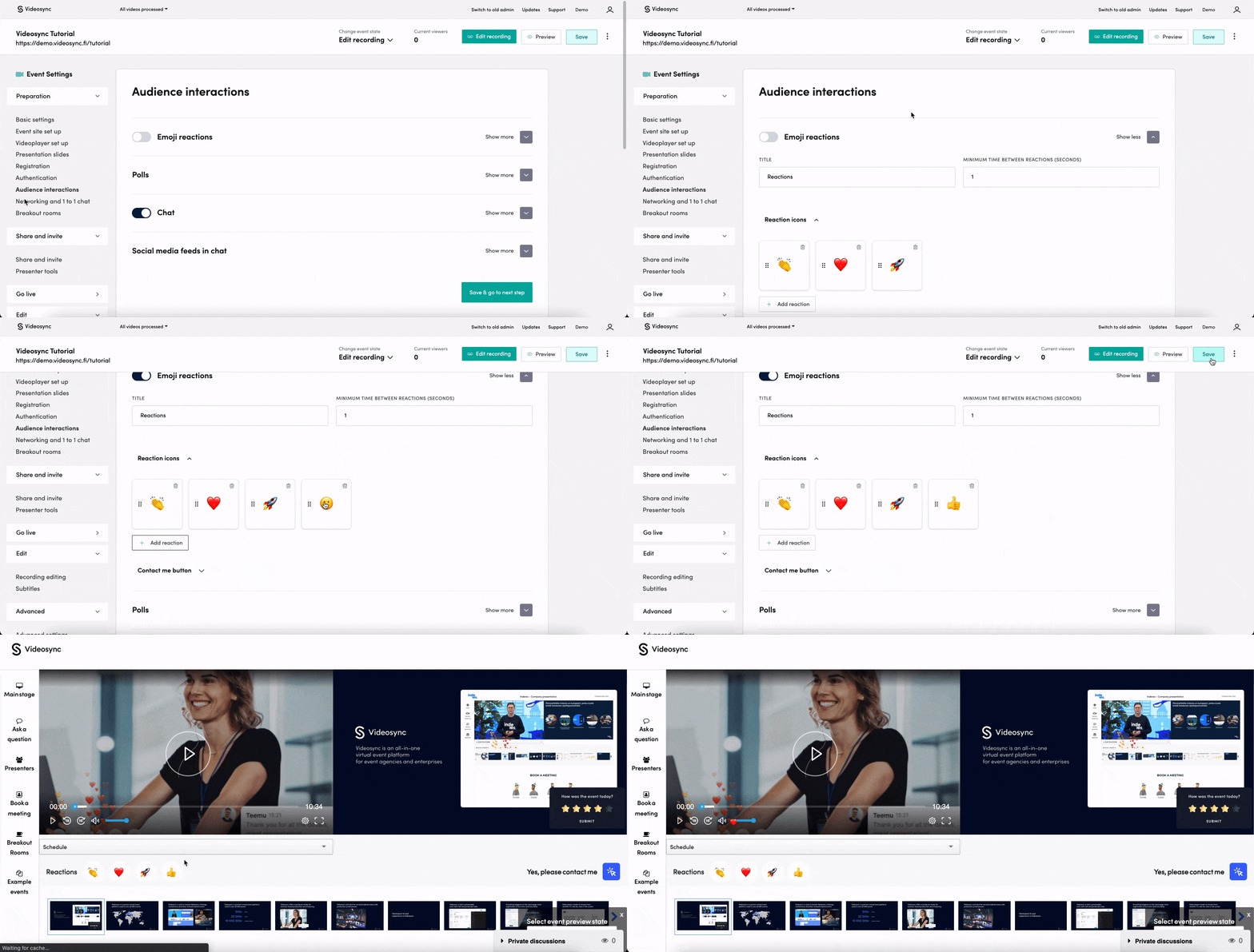
Options for customizing
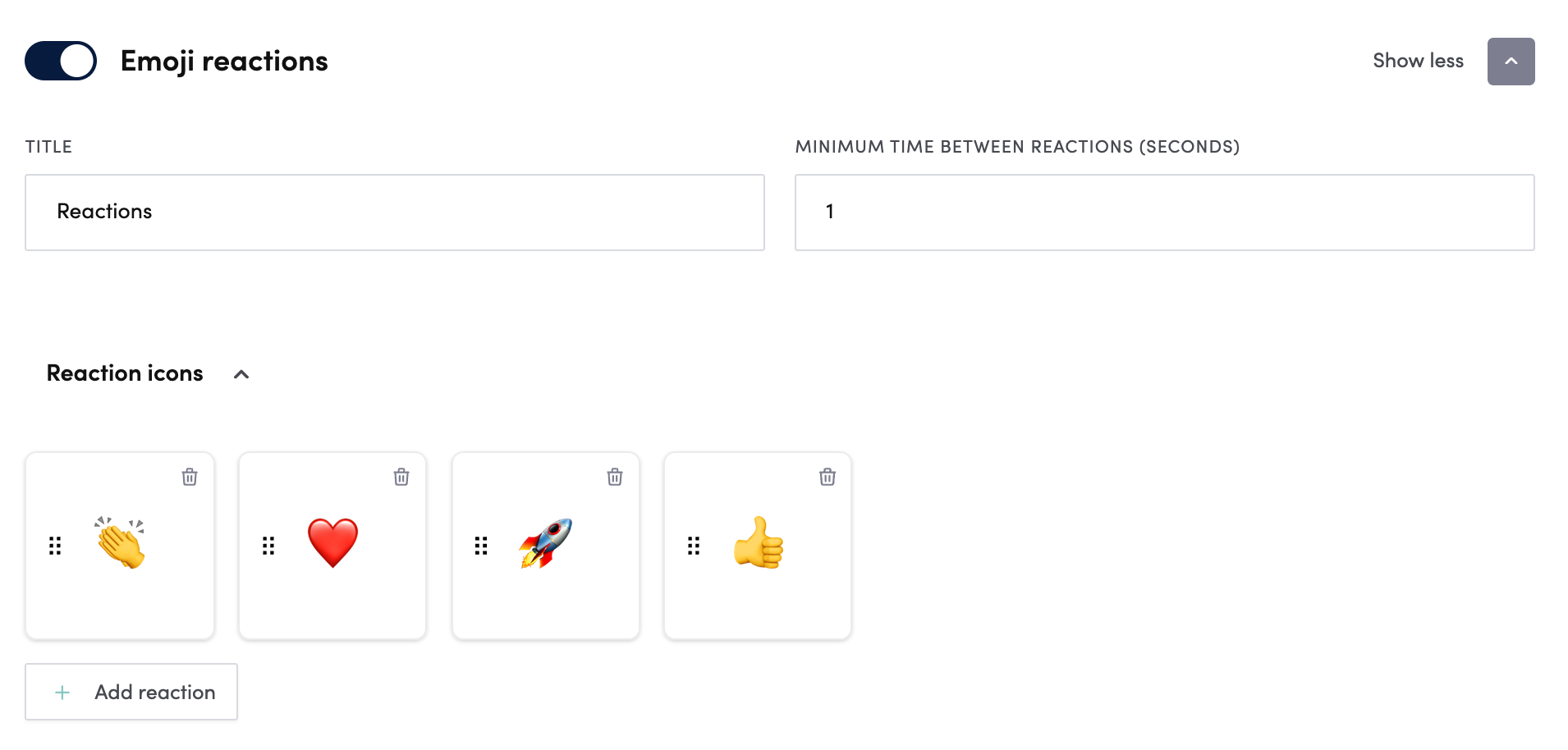
- Title: Change the title above emotions. “Reactions”, “Show your emotions” and “Share your feedback with the speakers” are often used.
- Minimum time between reactions (seconds): You can limit the time how often a single attendee can send reactions. This is to limit the potential flooding of the view.
- Reaction icons: You can rearrange emojis by dragging them and discard them with the trash bin icon.
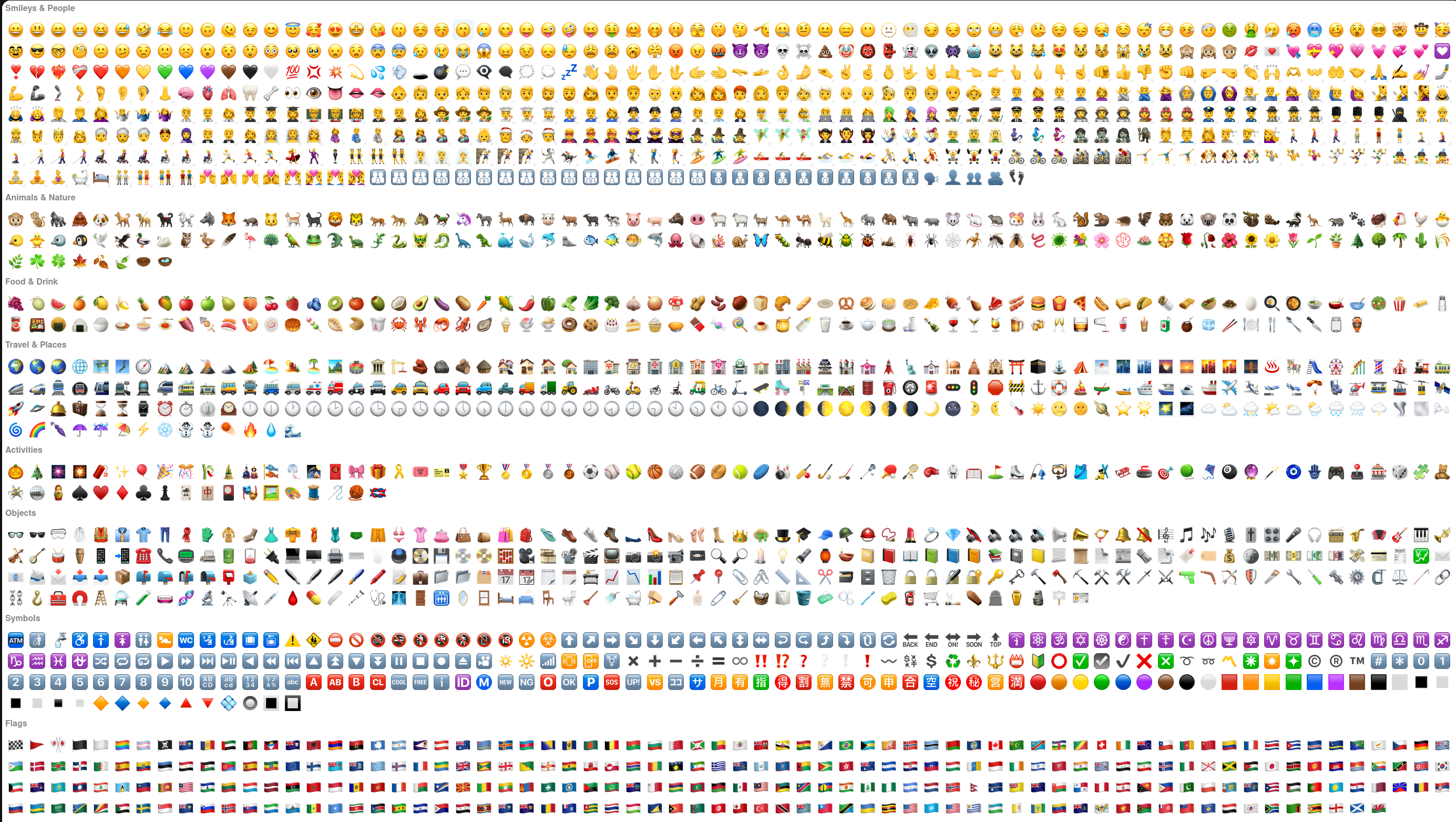
- Add Reaction: Click to add reactions from the most common emojis.
Available emoji reactions
Can't find what you're looking for?
Our AI assistant is here to help you find the information you need.